Pick a saved system, install it into MetaTrader, get it on its chart and switch Algo Trading on.
You need
- a system saved to Genomes
- MetaTrader 5 (or MetaTrader 4 on Starter and up) open and logged in to the account you want to trade
- Nebula connected to that account
Plan limits
| Plan | What you can deploy |
|---|---|
| Nebula Free | One real deploy, once per install. One single system, MetaTrader 5 only. It is only used when a deploy succeeds, so a failed compile costs nothing |
| Nebula Starter | One deployable system a day, MetaTrader 4 or 5. A source export counts the same as a deploy |
| Nebula Pro | Unlimited. Portfolios too (one EA for the whole book, MetaTrader 5) |
| Nebula Ultimate | Unlimited, plus Auto-Refresh Evolution |
A system you bought from the Systems Library deploys on any plan and never uses your free deploy or your daily allowance.
Steps
Open Deploy
Click the Deploy tab, or Deploy on a system in Results. On Free a banner reads "One free deploy: one system, MT5 only."
Deploy
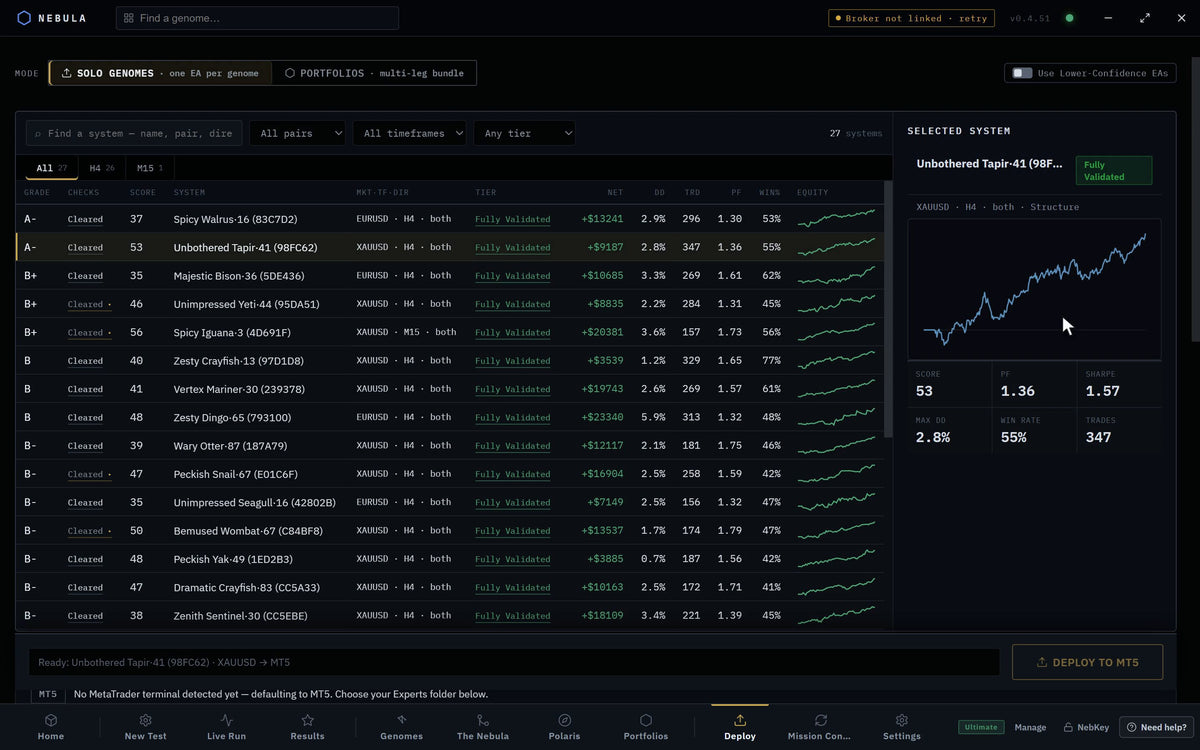
Pick Single systems and a system
Leave Mode on Single systems. Pick a system in the list. Selected system shows its curve, Score, Profit factor, Steadiness, Max drawdown, Win rate and Trades.
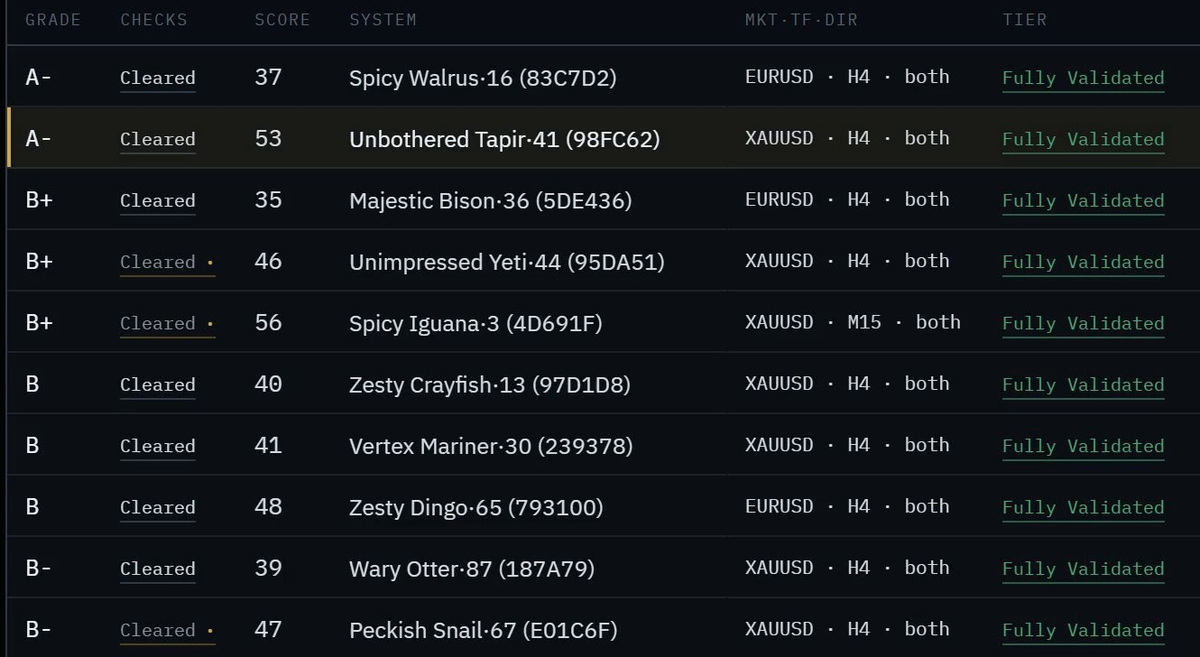
Check the platform badge
Under Install to MetaTrader a badge reads MT5 or MT4, with "Detected (your broker). Installs as a MetaTrader 5 EA." The platform follows the terminal you are connected to. There is no switch.
Check the Experts folder
Experts folder fills itself and reads "✓ Deploys to" your broker, server, account number and type. While Nebula is connected to an account, the folder is locked to that account's terminal. Disconnect to use Browse.
Leave the risk as tested
Risk per trade (%) starts at the risk the system was tested at and says "✓ Matches the test". Change it only if you mean to. The stats shown no longer apply at a different risk. Reset to sim risk puts it back.
Check the news buffer
News buffer (min) shows minutes before and after high impact news, marked against the test. Reset to tested puts it back.
Press Deploy
Press the gold button in the bar at the bottom: Deploy to MT5 (or Deploy to MT4). On Free it reads Deploy to MT5, your one free deploy. The bar beside it says Demo account or Live account with the account number.
Answer the checks
Nebula may ask:
- This is your one free deploy (Free). Press Yes, deploy this one or Cancel.
- Risk mismatch: deploy blocked if you changed the risk.
- Drawdown fit if the system's tested drawdown is past your limit. It offers a smaller size.
- Account exposure check if other EAs already run on the account.
- Deploy with these settings? always, last. Tick I agree to run with these settings, then Deploy.
Watch the compile
The bar shows each step, then "Deployed" and the file name: the system's name, then its symbol and timeframe, such as <name>_EURUSD_H1.mq5.
Verify & preview has tabs EA Source, Deploy History and Meta Terminal (the full compile log).
Let Nebula put it on its chart (Windows, MetaTrader 5)
With MetaTrader 5 on Windows, Nebula puts the EA on a chart of its own symbol and timeframe. MetaTrader closes and reopens once. Open trades stay with your broker. If it could not, press Put it on a chart now and follow its Fix it line.
Or attach it by hand (MetaTrader 4 or a Mac)
In MetaTrader open the Navigator (Ctrl+N), expand Expert Advisors › Nebula, then drag the EA onto a chart of the same symbol and timeframe. In the dialog allow algorithmic trading and press OK. Not there yet? Right click Expert Advisors and press Refresh.
MetaTrader›Navigator›Expert Advisors›Nebula
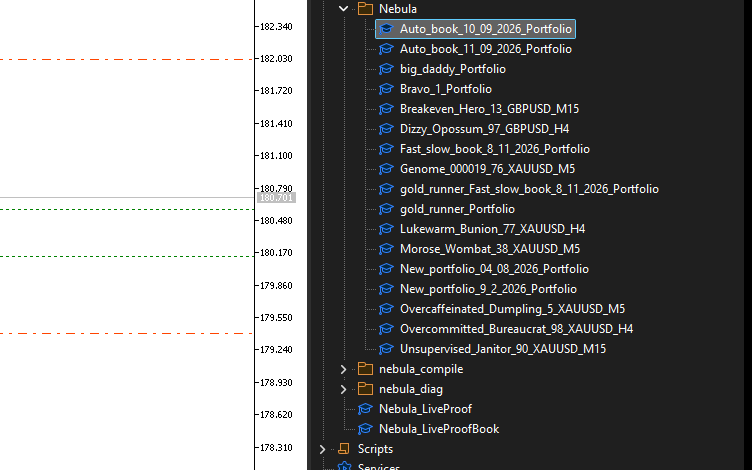
Turn on Algo Trading
Press Algo Trading in MetaTrader's toolbar so it turns green. Full steps for both platforms: Turn on Algo Trading in MT4 and MT5.
Confirm it reported
Mission Control shows the EA once it reports from its chart. "Loaded, but it has not reported yet." is normal for a minute. Mission Control live tracking is Starter and up.
Where the EA lands
| Item | Value |
|---|---|
| Folder | Your terminal's MQL5\Experts\Nebula (or MQL4\Experts\Nebula) |
| File name |
{system name}_{SYMBOL}_{TIMEFRAME}.mq5 and the compiled .ex5 (.mq4 and .ex4 on MT4) |
| In the Navigator | Expert Advisors › Nebula, one branch for every Nebula EA |
EA inputs
The EA opens with its inputs already set from the test. Leave them alone unless you know why.
| Input | What it holds | Set from |
|---|---|---|
| InpRiskPct | Risk per trade, % of balance | The risk you deployed at |
| InpMaxDailyLossPct | Halts for the day past this loss | Your test's daily loss |
| InpMaxWeeklyLossPct | Halts for the week past this loss | Your test's weekly loss |
| InpMaxDrawdownPct | Halts past this fall from the peak | Your test's total drawdown |
| InpMaxConsecLosses | Halts after this many losses in a row | Your test's losing streak |
| InpSessionHourMask, InpBlockFriday, InpBlockMondayOpen, InpAvoidFridayClose, InpFridayCloseHour | When new trades may open | Your hours and weekend choices |
| InpNewsFeedUrl | Where the EA fetches the news calendar | Set by Nebula |
| InpMagic (MT5) or MagicNumber (MT4) | The EA's own trade tag | Set by Nebula |
Magic numbers
Each deploy gets its own magic number, picked by Nebula and checked against every EA it has deployed. That is how Mission Control knows which trades belong to which system. Do not change it. A portfolio gets one range, one number per leg.
Redeploy or replace
| You want to | Do this | What happens |
|---|---|---|
| Deploy the same system again | Deploy it again | It writes over the same file. MetaTrader keeps running the old copy until the chart reloads. Nebula flags "The chart still runs an older build." Restart MetaTrader once more |
| Swap a live system for a better one | Open it in Mission Control and press Replace (Replace this leg for a book leg). Full steps in the swap guide | Starter and up. Keeps the same EA file and chart |
| Let Nebula swap fading systems | Tick Auto-Refresh Evolution on Deploy, then Auto-replace on decay | Ultimate. It looks for a stronger system when this one drifts below its tested range |
| Rebuild the source only | Re-generate, then View source | Writes the MQL again. Starter and up |
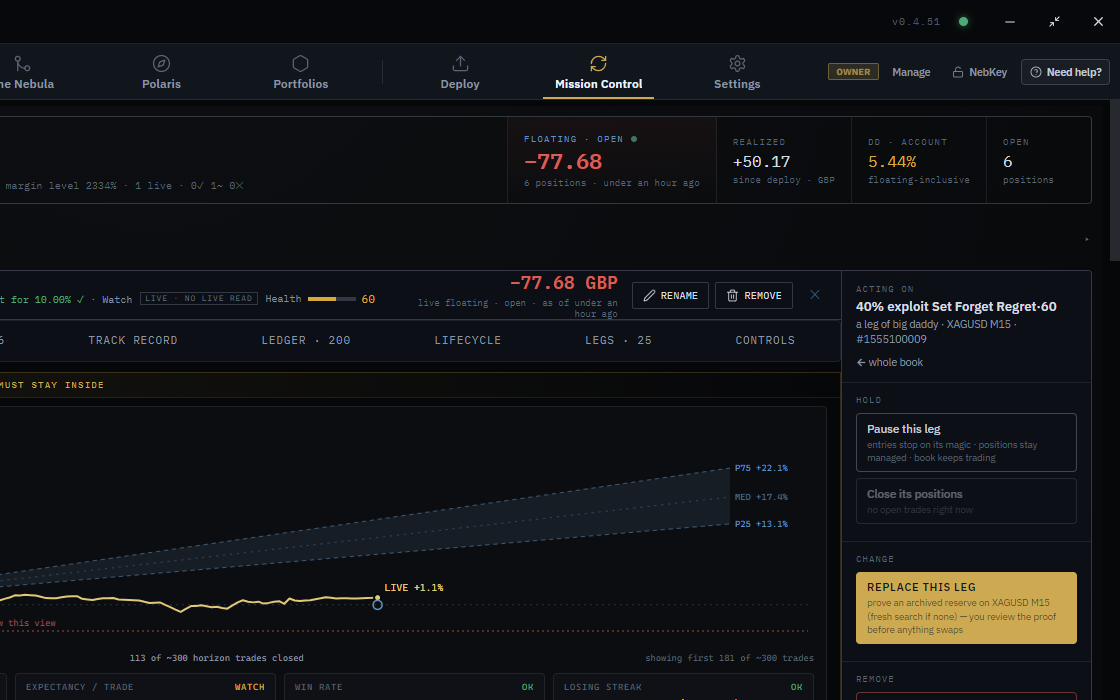
Options on the Deploy tab
| Option | What it does | Default | Plan |
|---|---|---|---|
| Mode: Single systems | One EA per system | On | All plans |
| Mode: Portfolios | One EA for a whole book. Button Compile & deploy → MT5 | Pro and Ultimate, MT5 only | |
| Experts folder, Browse | Where the EA installs | The connected terminal | All plans |
| Risk per trade (%) | Size the EA trades at | Tested risk | All plans |
| News buffer (min) | No new trades this close to news | Tested minutes | All plans |
| Export code | Opens the system's Export menu | See the source export guide | |
| Auto-Refresh Evolution | Finds a replacement when the system fades | Off | Ultimate |
| Put new EAs on charts automatically | One click chart attach after deploy | On | Windows with MT5 |
If something goes wrong
Free deploy used on the button
WhyYour one free deploy is spent
FixThe deployed system keeps running. Upgrade to Starter to deploy another
Free deploy is MT5 only
WhyNebula is connected to an MT4 terminal
FixConnect an MT5 terminal, or upgrade to Starter
"Pick the Experts folder first (Browse button)."
WhyNo folder found
FixOpen MetaTrader once, or press Browse
Deploy to a different broker?
WhyThe folder belongs to another broker than the one you are logged in to
FixCancel, then pick your connected terminal's Experts folder
Show 10 more
"This folder is not your connected ... terminal."
WhyWrong MetaTrader
FixPress Use ... terminal
"The EA file is not in MetaTrader."
WhyThe file is missing
FixDeploy it again
"AutoTrading is off in MetaTrader."
WhyAlgo Trading is off
FixPress Algo Trading so it turns green
"This EA is not allowed to trade."
WhyThe chart's EA setting is off
FixClick its chart, press F7, open Common, tick Allow Algo Trading
"EURUSD is not offered on this account."
WhyYour broker names it differently or hides it
FixIn Market Watch press Ctrl+U, find the symbol, Show Symbol
"MetaTrader is closed. Open it, then press again."
WhyChart attach needs MetaTrader open
FixOpen MetaTrader from your taskbar, then press again
"The Strategy Tester is running."
WhyA test would be stopped
FixPress again when it finishes
"MetaTrader 4: attach it by hand."
WhyOne click attach is MT5 only
FixDrag the EA from the Navigator
"Daily limit reached (1/1 today)."
WhyStarter's one a day is used
FixTry again tomorrow, or upgrade to Pro
Questions
Does the free deploy run forever?
Yes. The system you deployed keeps running. Only a second deploy needs Starter.
Do I need one chart per pair?
A single system needs one chart of its own symbol and timeframe. A portfolio EA has every pair inside it and needs one chart of any symbol.
Does MetaTrader need to stay open?
Yes. The EA only trades, and only avoids news, while its terminal runs. Nebula offers Set up hosting for a 24/7 terminal.
Can I deploy on a Mac?
The Mac app is 0.4.52. It has no one click chart attach. Drag the EA on by hand.